

How It Works
When password protection is enabled, anyone visiting your published design will see a password prompt. They will need to enter the correct password to view the site. This is useful for:- Sharing work-in-progress designs with specific clients
- Restricting access to internal prototypes
- Protecting sensitive content before a public launch
How to Enable Password Protection
Click the Share button
Click the Share button at the top of the editor, then open the Privacy section in the Publish modal.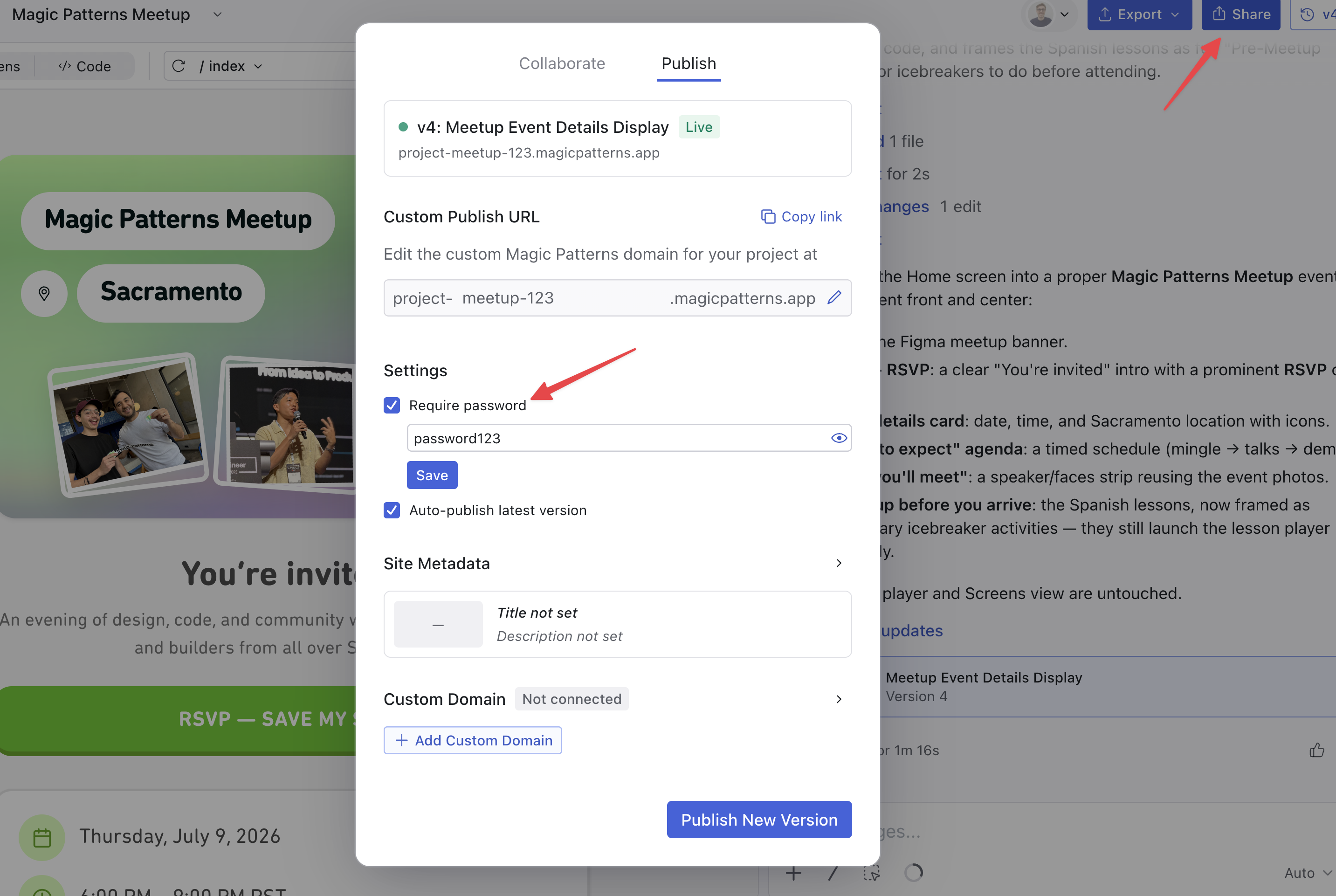
Enable password protection
Toggle on Require password for design preview. A password input field will appear.
Removing Password Protection
To remove password protection:- Open the Publish panel and go to Privacy
- Toggle off Require password for design preview
Notes
- Password protection applies to the published version of your design
- The password is not visible after it’s been set—you’ll need to set a new one if you forget it
- Password protection works with both Custom Publish URLs and Custom Domains